Chapter 8
Results
Each business appears as a card with everything you asked for. At the top you see how many leads there are, how many your filters skipped and the Cost breakdown.
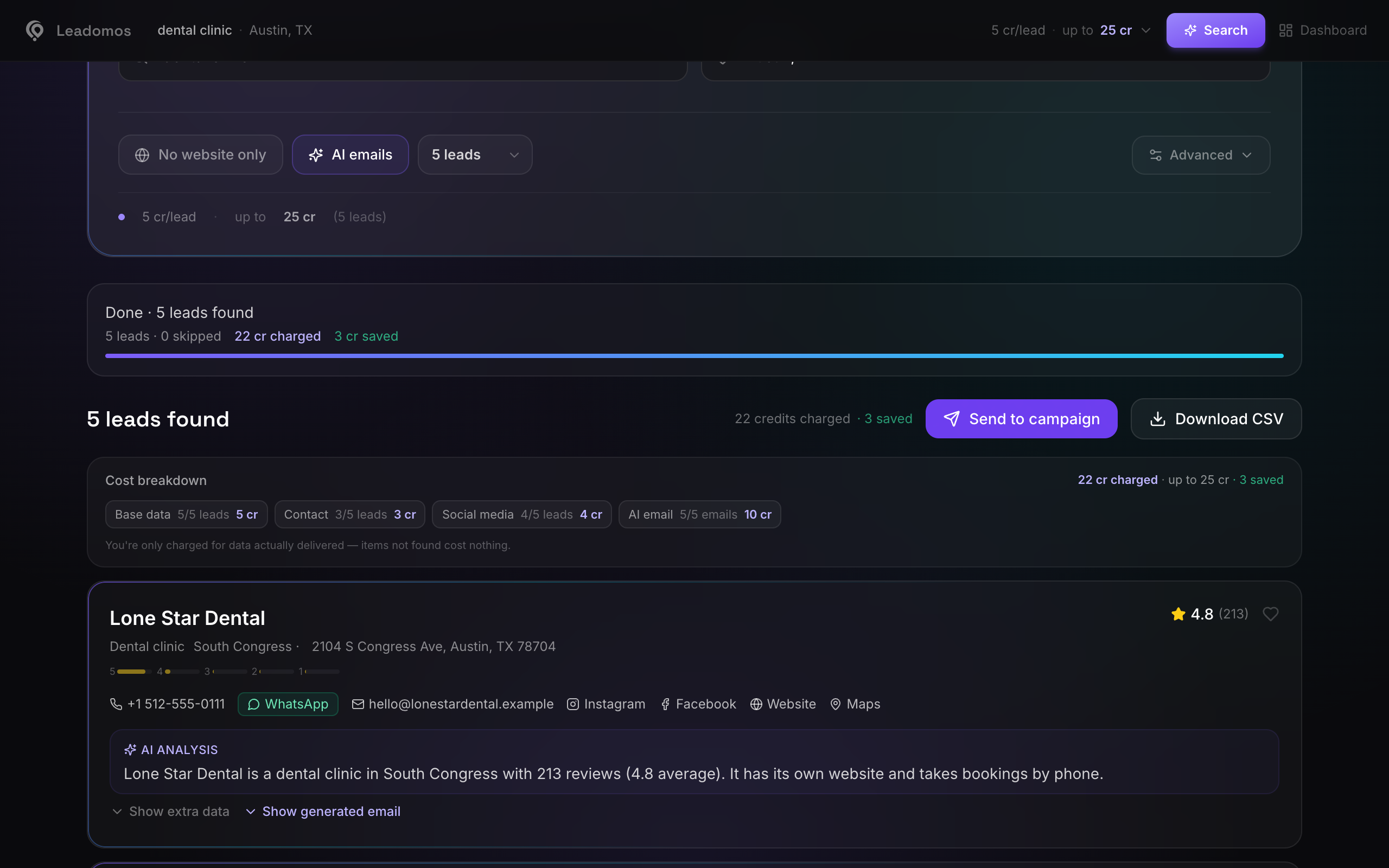
A lead's card
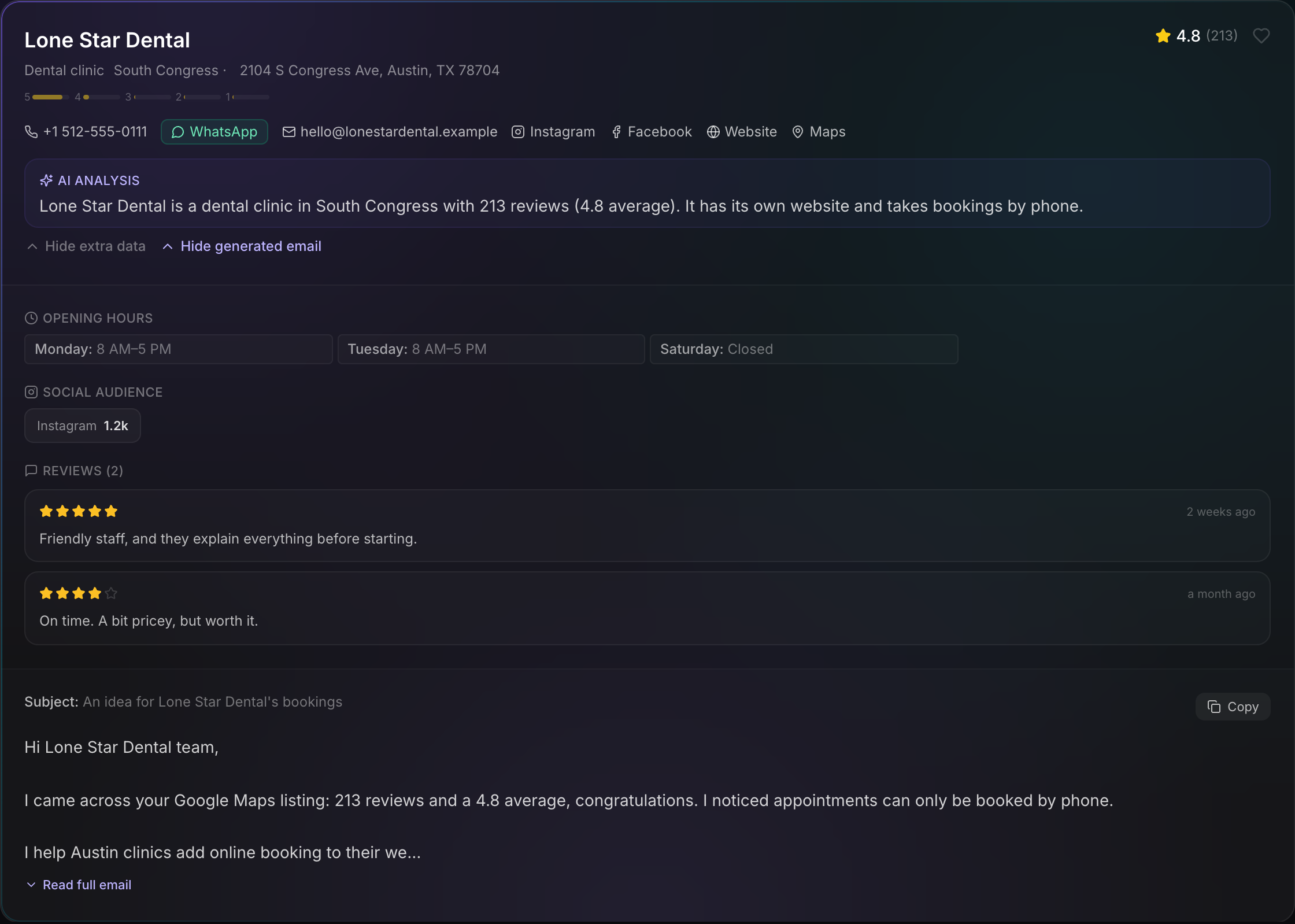
- Listing data: name, category, address, phone, website, rating and number of reviews. Maps opens the listing on Google Maps.
- Website status: no website, social only, working website or broken site.
- Website contacts: published emails and phones, and their socials.
- Social audience: followers and bio of each profile.
- Reviews, Review themes and the owner's response, if you asked for them.
- Opening hours, Services & info and Questions & answers, with the full detail page.
- Decision-makers (Business plan): LinkedIn contacts.
- AI analysis: a description of the business and why it might need you.
- Email draft (subject and body) and WhatsApp message, if you turned on the AI email. Copy copies them; the WhatsApp button opens the conversation with the message written in.
Save to favorites keeps the lead in Favorites.
When a search comes back empty
If no business comes back, Leadomos explains the most likely reason and suggests how to fix it, at no cost:

- Your filters discarded them (for example, "No website only" in an area where everyone has a website): relax them.
- Matching is too strict: switch to Permissive.
- The location was not found or the area was very small: type the city with its region and country.
- There are no businesses of that category in that area: try a bigger city or a nearby category.
A search with no results costs no credits.